Client Portal for Web Designers: What Your Clients Actually Need

A client portal should answer three questions without an email: what's happening, what's next, and what do I owe. Most portals for web designers try to answer thirty. Here is what your clients actually use, what you can leave out, and how to give them one link that does the job.
What Clients Actually Want From a Portal
Clients don't log in to admire a dashboard. They log in because they want to know something, and they want to know it quickly. Almost every visit comes down to one of these:
- Where is my project? What's been done, what's being worked on, and what's waiting on them.
- I need something changed. A way to ask that doesn't get lost in an inbox.
- Where's that file? The logo, the brand guide, the photos they sent three weeks ago.
- Can I ask you something? A direct line to the designer.
- What do I owe? Anything that needs paying, and a way to pay it.
A portal that handles those five things well will be used. One that adds Gantt charts, time sheets and contract libraries on top usually isn't, because the answers your client wants get harder to find.
The Five Parts of a Useful Client Portal
1. A task list with honest statuses
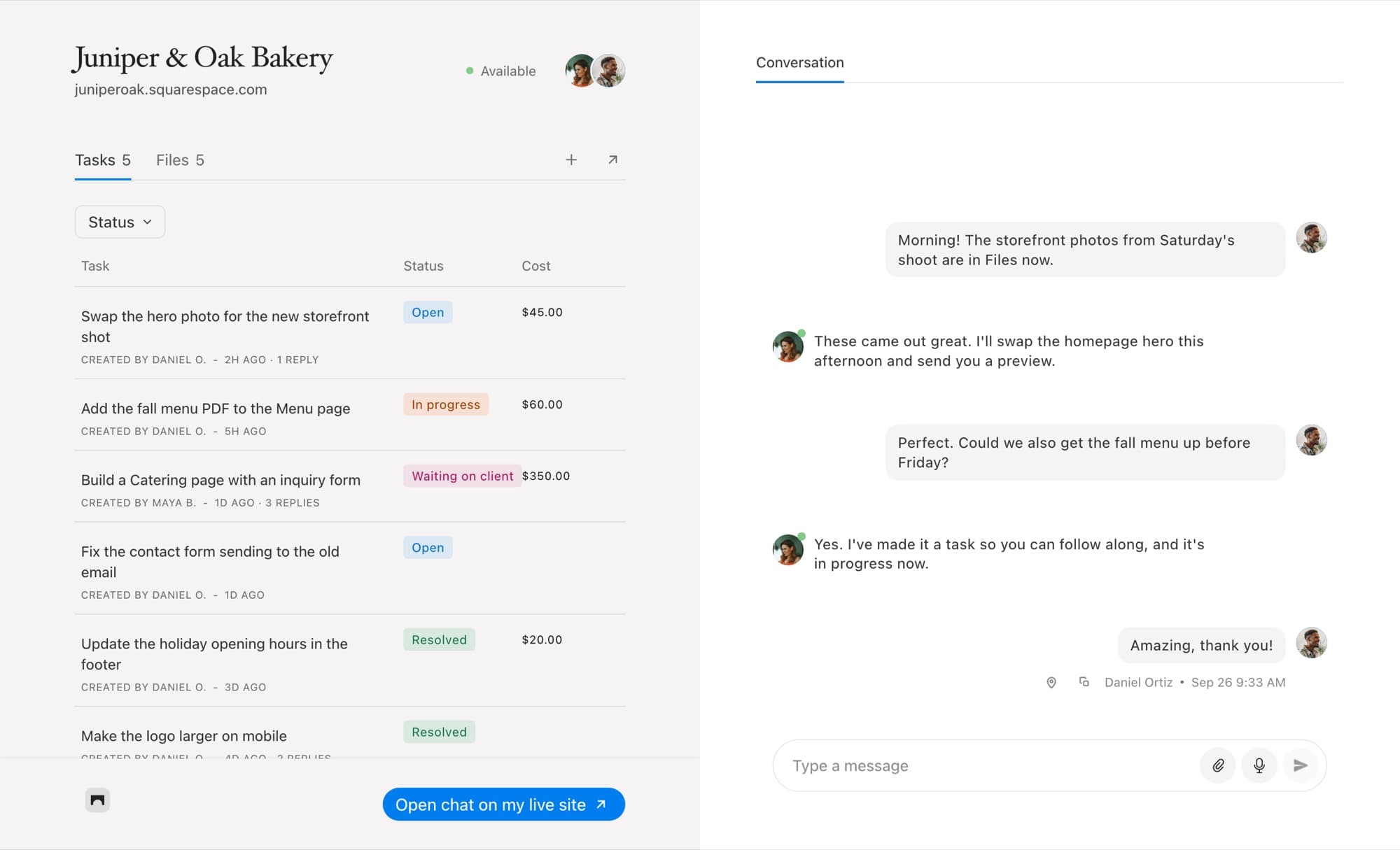
Every request, from you or from them, belongs in one list with a clear status. In Bridge those are Open, In progress, Waiting on client, Resolved and Cancelled. "Waiting on client" does a lot of quiet work here: it tells your client, without a nudge from you, that the next move is theirs.
2. A way to make new requests
Your client should be able to add a task themselves, describe it, attach a file and, if it matters, set a due date. Requests that start in the portal are already in the list you work from, so nothing needs copying over.
3. Files in one place
Everything shared in the conversation, images, PDFs and links, collected in a Files tab. Your client stops asking you to resend things, and you stop searching old emails for them.
4. A conversation, not a comment box
Real messages, with replies, files and voice notes, so a quick question gets a quick answer. Any message can be turned into a task with one click when it turns out to be a request.
5. Payments that match the work
When a task has a cost, your client should see it on the task and be able to pay it there. Bridge connects to your Stripe account, so the money goes straight to you and the task is marked paid when it clears.
What You Can Leave Out
Designers building a portal often add features for themselves and then wonder why clients don't use them. These are usually safe to skip on the client side:
- Time sheets. Clients care about the price of a task, not the minutes behind it. Keep the timer for yourself.
- Project timelines and charts. A status on each task says more, and stays up to date without you redrawing anything.
- Separate logins. Every password is a reason not to come back. A sign-in link sent by email is enough.
Bridge's Client Portal
Every Bridge project has its own chat page: one link you can send your client. It shows the project's tasks with their status and cost on one side and the conversation on the other, with files a tab away. It's the same project your client sees in the Bridge widget inside their Squarespace editor, so it doesn't matter which one they open. Anything they do in one appears in the other.
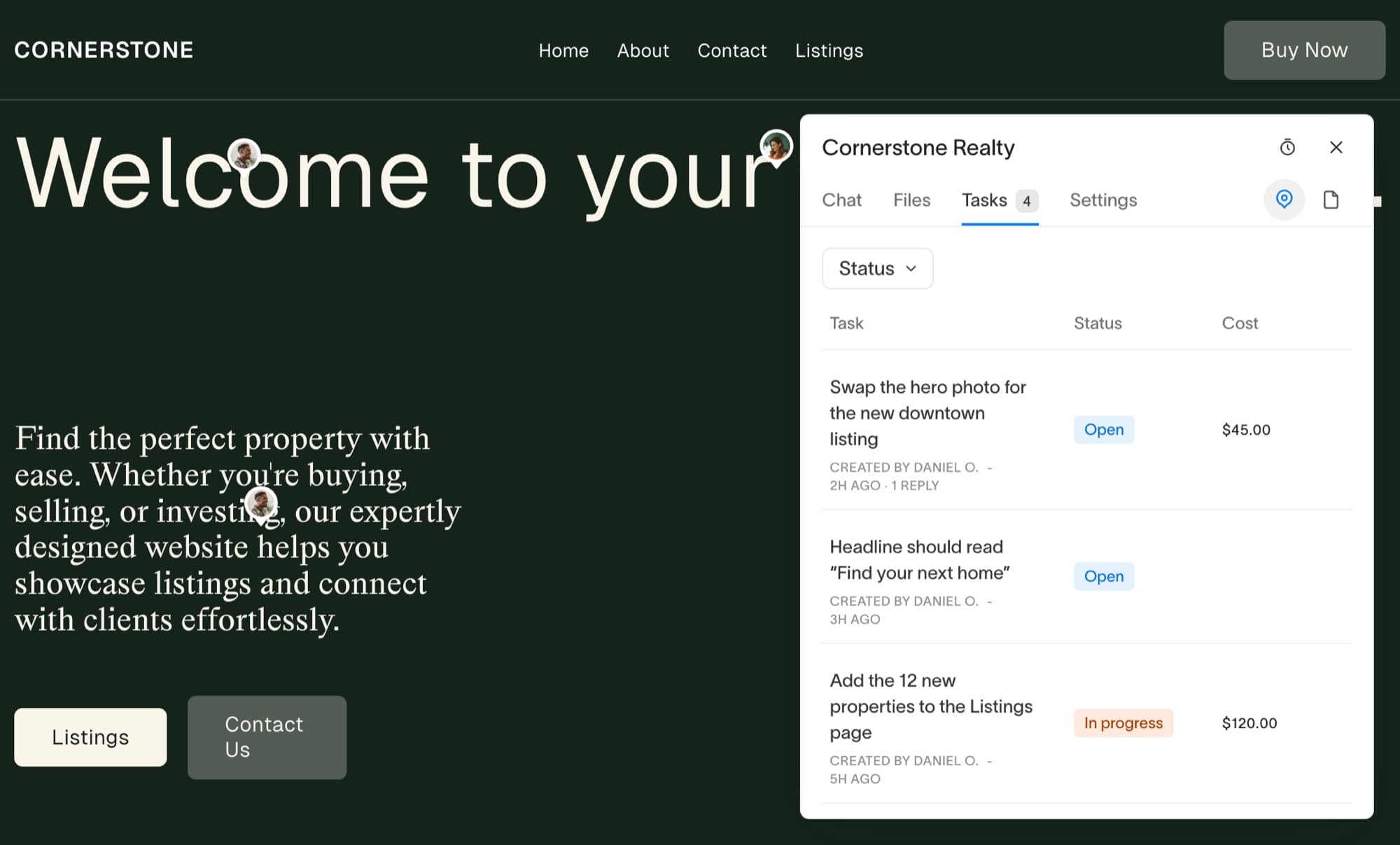
You can invite up to three people to a project, so the business owner, their marketing lead and whoever writes the copy can all make requests, reply and pay, each under their own name.
How to Set One Up
- Add your client's Squarespace site as a project in Bridge.
- Invite your client and anyone on their team as members.
- Send them the project's chat page link, or have them use the widget in their Squarespace editor.
- Add the work you already know about as tasks, so the list isn't empty on their first visit.
Common Questions
Does my client need an account?
No password. Members sign in with a link sent to their email address, and from then on the portal and the widget recognise them.
Can clients see what I charge for time?
Clients see the price of each task. Your timer and time entries stay in your dashboard.
Is the conversation private?
Yes. Only you and the members you invite can see a project's messages, tasks and files.
What does it cost?
Link is $19 a month for five client sites, Connect is $39 for 25, and Atlas is $99 for unlimited sites, each with a 14-day free trial. See pricing for the full comparison.
One Link, Fewer Emails
The best client portal for web designers is small. Status, requests, files, a conversation and a way to pay, on one page your client can open from a link. Give them that, and the "just checking in" emails stop on their own.