
Website Feedback Tool for Squarespace: Collect Client Revisions Right on the Page

"The thing near the top looks off." Every web designer has decoded a message like that. A website feedback tool fixes it at the source: your client clicks the exact spot on their Squarespace site, types what they want changed, and you get a task that already knows which page, which element and which screen size they were looking at.
Why Revision Emails Break Down
Clients aren't designers, and they shouldn't have to be. When they send feedback by email they describe what they see in their own words, from memory, often from their phone. You then spend the first ten minutes of every revision working out where "the blue part" is, which page it's on, and whether they meant the mobile layout.
Three things go wrong with feedback that arrives this way:
- Location is lost. A screenshot helps, until it's cropped, or from a different page, or from last week's version.
- Context is lost. You can't see the browser, the device or the screen width, so you can't reproduce what they saw.
- Requests get buried. Five changes in one email become five lines you copy into a to-do list, and the sixth one, mentioned in a reply two days later, never makes it there.
What a Website Feedback Tool Does
A website feedback tool puts the feedback where the problem is: on the page itself. Instead of describing a change, your client points at it. The good ones turn each comment into something you can act on, not another message to read.
On a Squarespace site, that means a small widget inside the site's Squarespace editor, right on the page being worked on. The client switches on a pin, clicks the heading, image or button they want changed, and types the request. The pin stays on the page where they left it, so anyone opening the site in the editor later sees exactly what was asked for, and where. Your visitors never see any of it: the widget doesn't appear on the live site.
What to Look For
Pins that remember the page and the screen
A pin is only useful if it comes back in the right place. Look for a tool that records the page, the position, the browser and the viewport size with every request. Bridge also captures a screenshot of the page as the client saw it, with the pin drawn where they clicked, so a request made on a phone is never judged on a desktop.
Requests that become tasks
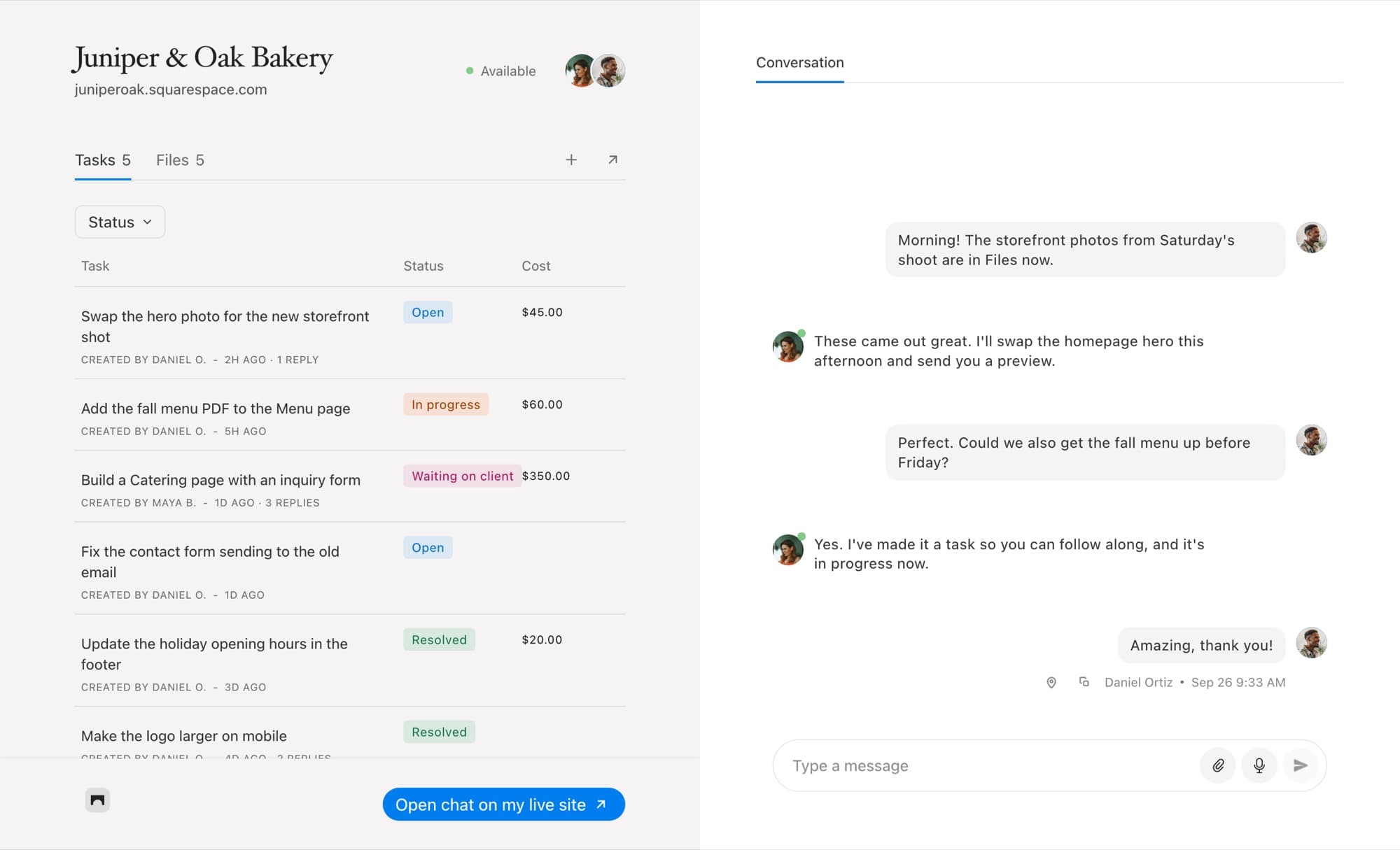
Feedback should land in a task list, not an inbox. Each pinned comment in Bridge becomes a task with a status (Open, In progress, Waiting on client, Resolved), so you and your client can both see what's been done and what's still waiting.
No accounts for your client
If your client has to sign up for something before they can leave a comment, they'll email you instead. Bridge sends them a sign-in link instead of a password, and they can use it in their own Squarespace editor or on the project's chat page, with nothing to install.
A conversation beside the feedback
Some changes need a quick back-and-forth. Replies on the task keep that discussion attached to the request it's about, rather than in a separate thread.
How to Collect Feedback on Squarespace With Bridge
1. Add the widget to the site
Add the client's site as a project in your Bridge dashboard and paste the Bridge Code into the site's Header Code Injection. The widget appears in the corner of the site inside the Squarespace editor, and never on the live site your visitors see.
2. Invite your client
Add your client as a member of the project. They get a sign-in link by email. If they have access to their Squarespace site, they can use the widget in the editor; if not, the project's chat page gives them the same tasks and conversation.
3. Ask them to pin, not describe
Your client opens the site in their Squarespace editor, opens the widget, presses the pin, and clicks anywhere on the page. They type what they want changed and the task is created, pinned to that spot, with the screenshot and device details attached.
4. Work through the list
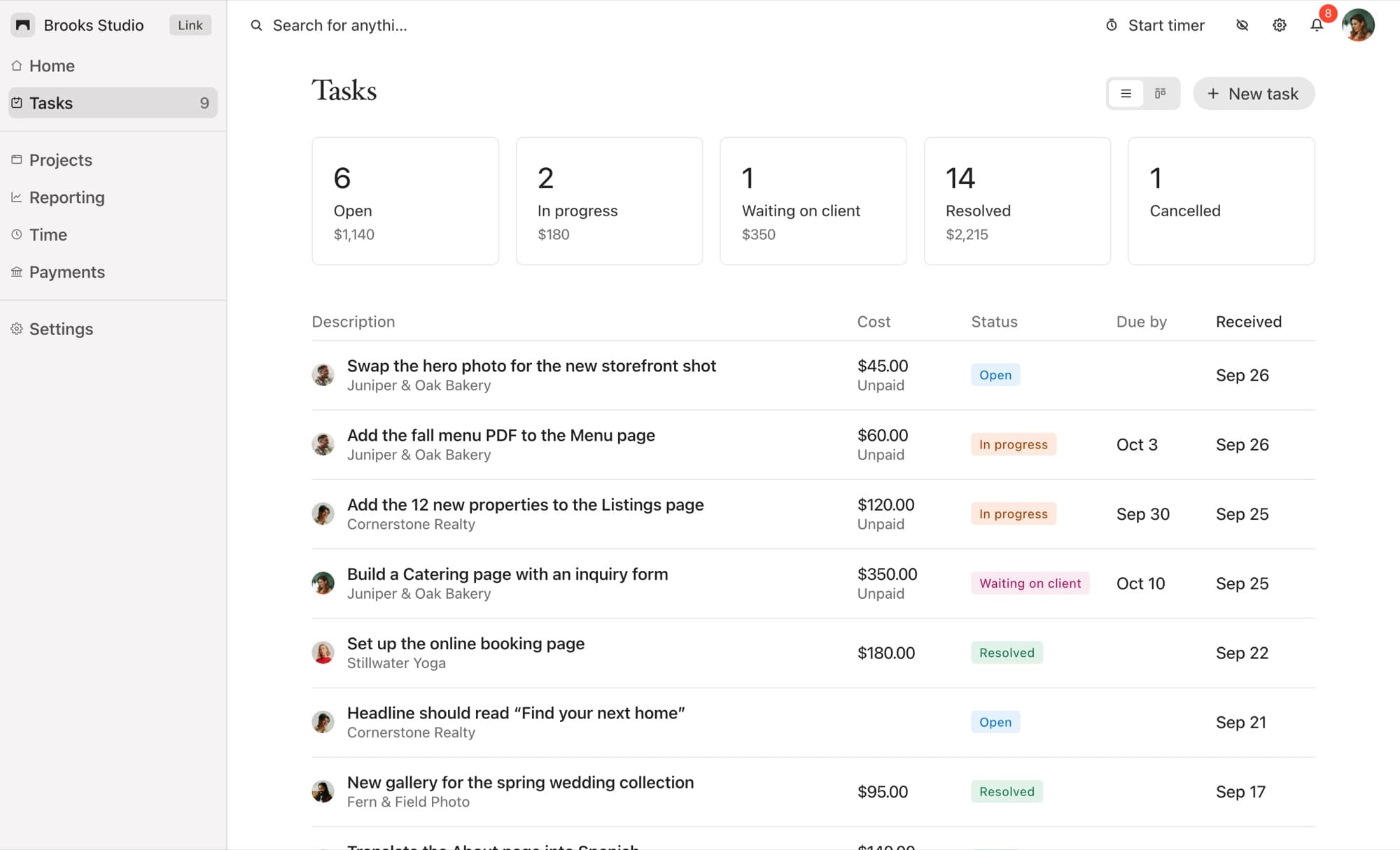
You see every request in the widget's Tasks tab and in your dashboard across all your client sites. Move each one to In progress when you start, reply if you need more detail, and mark it Resolved when it's done. Your client sees the status change without asking.
5. Charge for the extras
Not every request is in scope. Any task can be given a fixed cost or billed hourly, and your client can pay for it right from the task. See how to get paid for website change requests for the full workflow.
Tips for Cleaner Feedback Rounds
- One pin, one change. Ask clients to leave a separate pin for each thing they want changed. It keeps every task small enough to finish and tick off.
- Review on their device. The viewport size on each task tells you whether the request is about mobile. Check it before you change the desktop layout.
- Use "Waiting on client". When you need copy, photos or a decision, set the task to Waiting on client. It's clear whose turn it is.
- Close the loop. Resolve tasks as you go rather than in a batch at the end, so the client sees steady progress.
Common Questions
Does the widget show to my client's visitors?
No. The widget only appears inside the Squarespace editor, never on the live site. Stealth mode can also tuck the chat button away until the corner of the page is hovered.
Will I know what screen my client was looking at?
Yes. Each task records the browser and screen size it was left at, along with a screenshot of the page and the pin.
Does it work on a site that isn't live yet?
Yes. Bridge works on a Squarespace site while you build it, including sites behind a password, so feedback can start before launch.
What does it cost?
Link is $19 a month for five client sites, Connect is $39 for 25, and Atlas is $99 for unlimited sites, each with a 14-day free trial. See pricing for the full comparison.
Feedback Where the Work Is
The best website feedback tool is the one your client actually uses. Put it in their own Squarespace editor, let them point instead of describe, and turn every comment into a task you can finish. Revisions get shorter, and "the thing near the top" becomes a pin you can click.