How to Get Paid for Website Change Requests (Without Chasing Invoices)

The site launched months ago, and the requests keep coming: a new photo here, updated hours there, "one quick thing" on a Friday. Each change is small. Together they're a day's work a month that most web designers never bill for. Here's how to price change requests, agree the cost before you start, and get paid without writing a single invoice.
Why Change Requests Go Unpaid
Nobody decides to work for free. It happens because billing a small change costs more effort than the change itself. You'd have to note the time, remember it at the end of the month, write it up on an invoice, send it, and follow up when it isn't paid. For a fifteen-minute job, most designers skip all of that and just do the work.
The other reason is awkwardness. Raising a cost after the work is done feels like a surprise bill. Raising it before feels like haggling over something tiny. So the cost never gets raised at all.
Both problems have the same fix: attach the price to the request itself, agree it up front, and let the client pay for that one request, right where they asked for it.
Step 1: Decide How You Price Changes
There are three honest ways to handle a change request, and you can mix them:
- No cost. Genuine fixes, things inside the original scope, and goodwill for a good client.
- Fixed cost. A price you agree before you start. Best for well-defined work like a new page, a gallery or a form.
- Hourly. Billed at your rate from the time you track. Best when the size of the job isn't clear until you're in it.
Set an hourly rate once for your account, and override it per project for the client who's on a different rate. Having the number ready removes most of the hesitation about quoting.
Step 2: Turn Every Request Into a Task
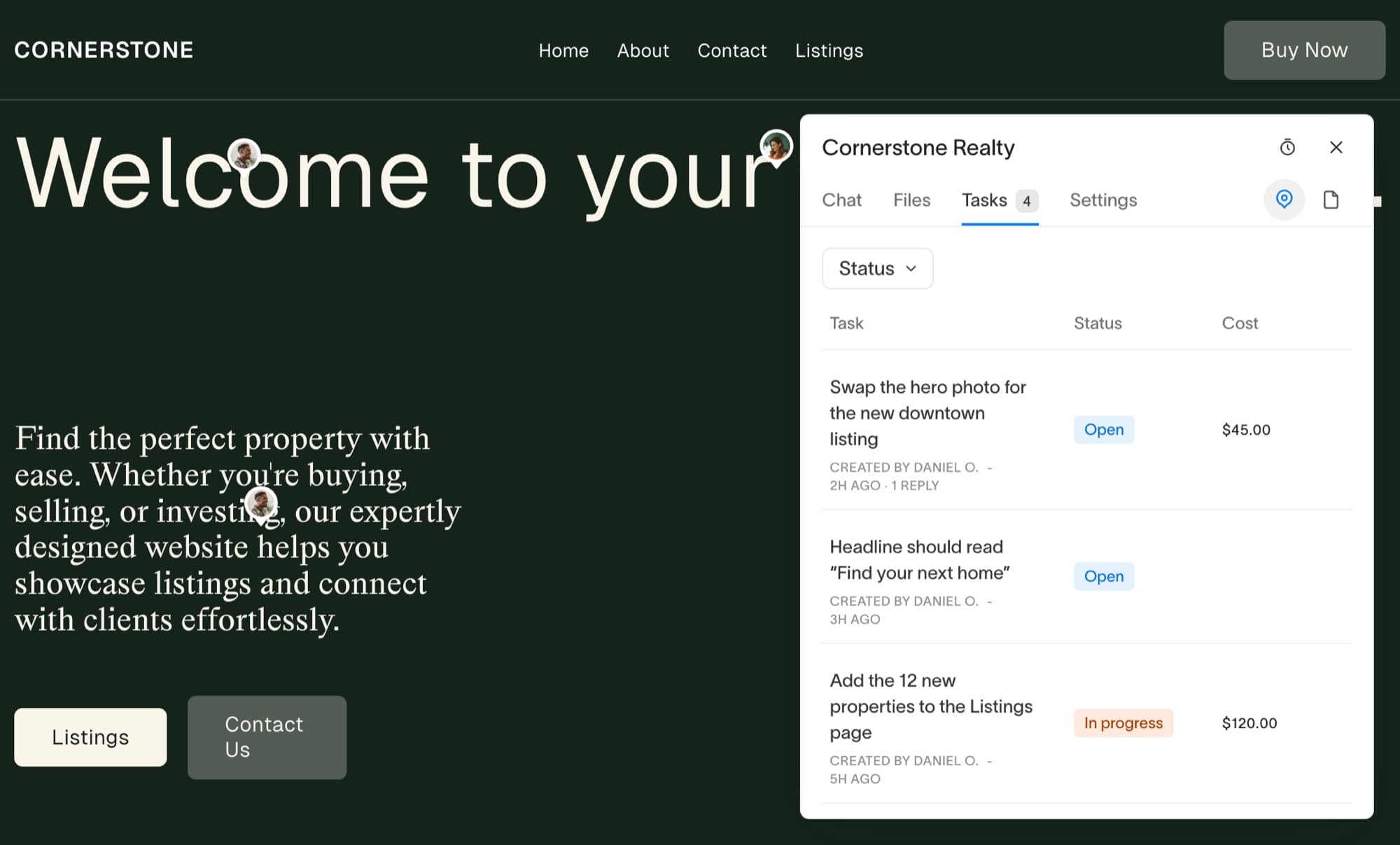
A change you can bill for is a change you've written down. Whether it arrives as a pin on the page, a chat message or something your client adds themselves, it should become a task before you touch it. In Bridge, a chat message becomes a task with one click, and pinned feedback is a task from the start.
Step 3: Put the Price on the Task, Before You Start
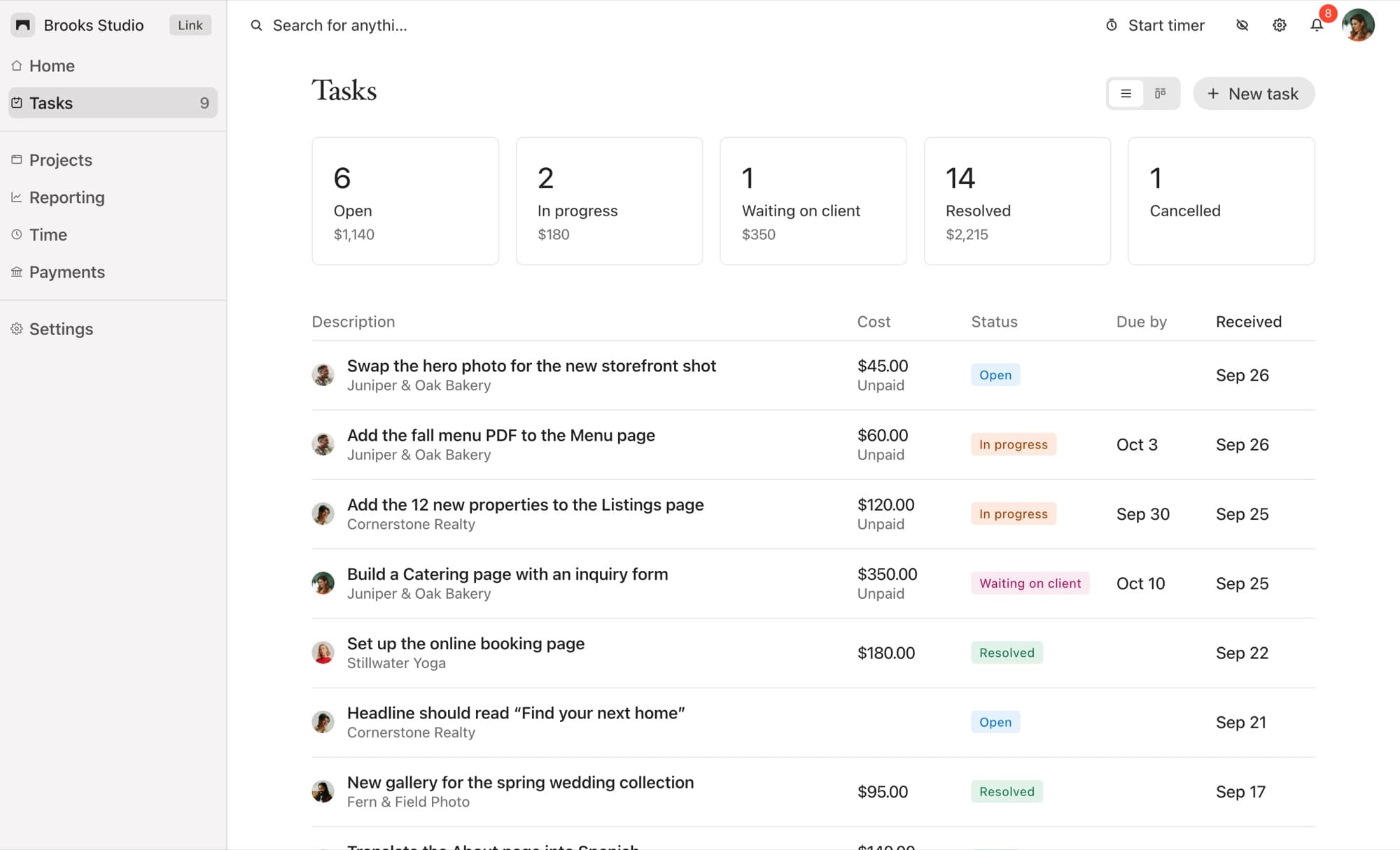
Choose No cost, Fixed cost or Hourly when the task is created. Your client sees the cost on the task, so the price is agreed before the work begins, not argued about after. If the scope changes, you can switch how a task is billed until you've asked for payment, and the change is logged on the task so there's a record of who changed what and when.
For hourly work, press play on the task when you start and stop when you finish. The task shows the time and the running cost at your rate.
Step 4: Request Payment When It's Done
When you resolve the task, request payment. Bridge emails the members of the project with the task and the amount, and a Pay button appears on the task in the widget and the client portal. You can see exactly what the email will look like before it sends, and choose who receives it.
Step 5: Let the Client Pay Right There
Your client pays with a card through Stripe, from the task they asked for. The money goes to your own connected Stripe account, and the task is marked paid the moment it clears. There's no invoice to raise, no payment link to paste into an email and no spreadsheet to update.
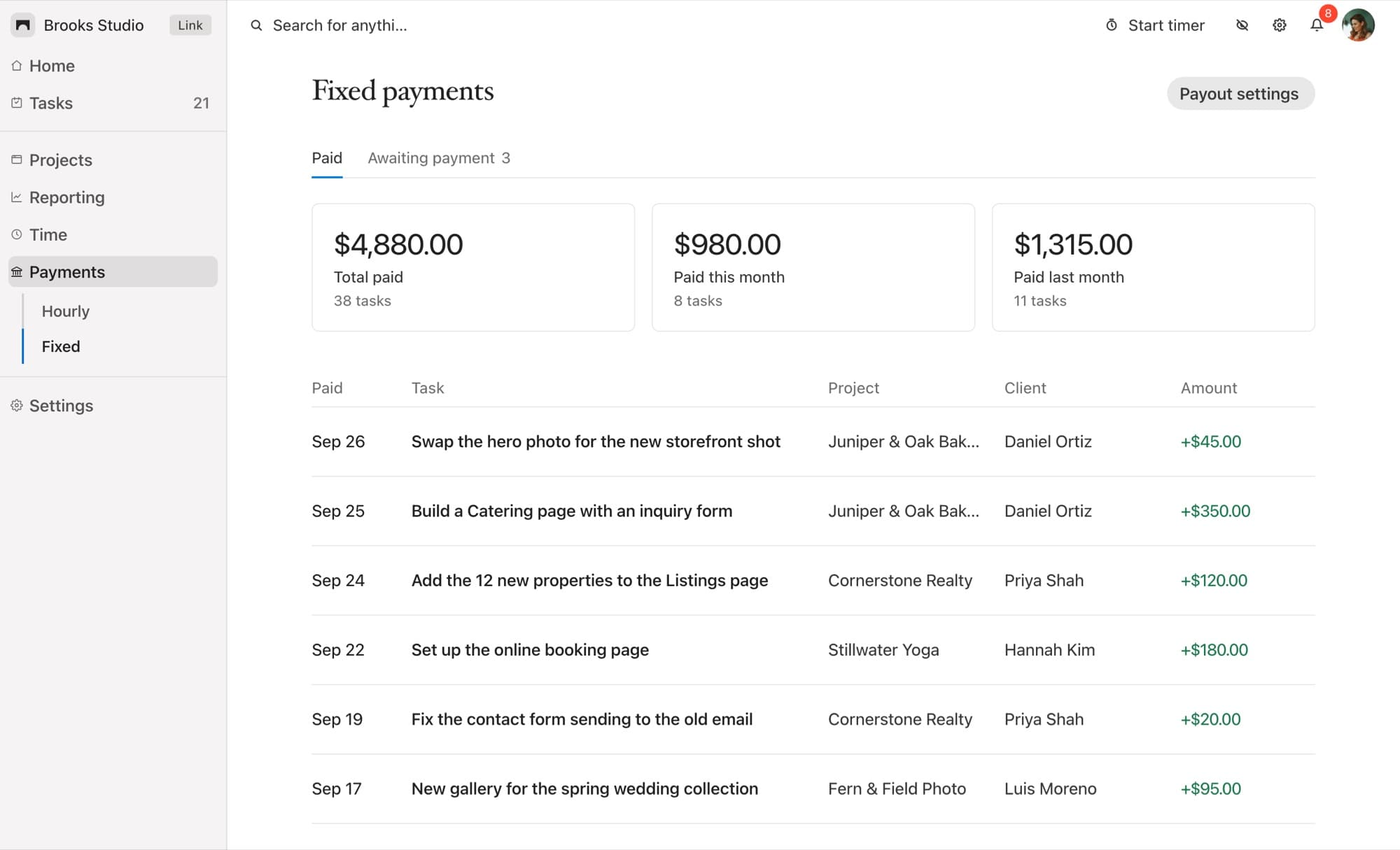
Your Payments pages collect it all: what's been paid, split by fixed and hourly work, with totals for this month and last, and a separate list of everything still awaiting payment.
Scripts for the Awkward Part
Most clients are happy to pay for extra work. They just need to hear it clearly:
- When a request is out of scope: "Happy to do this. It's outside the original project, so I've added it as a task at $60. Let me know if that works and I'll get started."
- When the size is unclear: "I'll bill this one hourly at my usual rate. I'll let you know if it looks like going over an hour."
- When it's a freebie: Mark it No cost anyway. A record of goodwill work makes the paid work easier to explain later.
Common Questions
Do I need a Stripe account?
Yes. You connect your own Stripe account from Settings, and client payments go straight to it.
What does Bridge charge on payments?
Bridge takes a 2% fee on client payments on the Link and Connect plans, and 1% on Atlas, alongside Stripe's own processing fees.
Can I change a task's price after creating it?
Yes, until it's paid. How the task is billed (no cost, fixed or hourly) can be switched until you request payment, and every change is logged on the task.
What does it cost?
Link is $19 a month for five client sites, Connect is $39 for 25, and Atlas is $99 for unlimited sites, each with a 14-day free trial. See pricing for the full comparison.
Small Changes, Paid
Getting paid for website change requests isn't about charging more. It's about making each request carry its own price from the start, so billing a fifteen-minute job takes no more effort than doing it. Put the cost on the task, agree it before you begin, and let your client pay where they asked.